SecureStrings and Plain Text in PowerShell

A question came up today on the newsgroup asking why the following didn’t work:

PS >$secureString = ConvertTo-SecureString "Hello"
ConvertTo-SecureString : Cannot process argument because the value of argume
nt "input" is invalid. Change the value of the "input" argument and run the
operation again.
At line:1 char:39
+ $secureString = ConvertTo-SecureString  <<<< "Hello"
PS >

For some background – a SecureString is a type of string that PowerShell (and .Net) keeps encrypted in memory.  Even if an attacker can explore the memory on your computer (like the contents of a swap file, for example,) they cannot gain access to the secret protected by the SecureString.

PowerShell range operator for other types

The PowerShell range operator allows you to generate lists of numbers out of more compact expressions:

PS >1..5
1
2
3
4
5

PS >6..4
6
5
4

Something that came up on the newsgroup was the desire for range operators on data types other than the numeric ones.  It’s a feature we wanted to add, but weren’t able to.  In the meantime, this script / function accomplishes the goal quite well:

Exchange team demonstrates their PowerShell integration

Over the past few days, the Exchange team has been demo-blogging features of their new administrative interface.  The power is obvious, and the benefit it brings to administrators is palpable.

They’ve built their entire administration surface on PowerShell cmdlets, so today’s post really ties the series together nicely. 

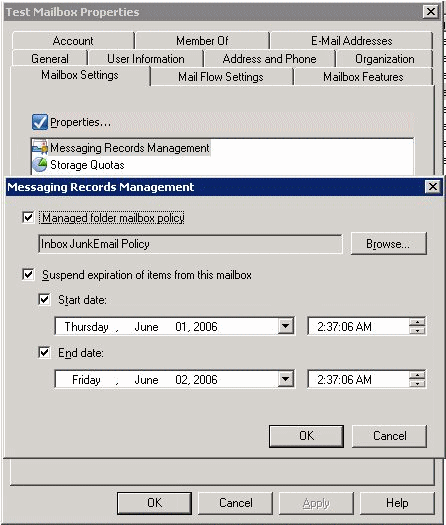
They go through 14 of their most common scenarios with screen shots to illustrate all of the GUI actions.  Then, for each, they show some incredibly intuitive PowerShell one-liners that accomplish the same task (and more!)

Value types vs Reference types

A question came up recently in the newsgroup, asking why adding seemingly different items to an ArrayList resulted in the ArrayList being full of the same item:

PS >$table = new-object Collections.ArrayList
PS >$row = 1 | select Col1,Col2,Col3
PS >$row.Col1 = "Column 1"
PS >$row.Col2 = "Column 2"
PS >[void] $table.Add($row)
PS >$row.Col1 = "Column 1, again"
PS >$row.Col2 = "Column 2, again"
PS >[void] $table.Add($row)
PS >$table

Col1                       Col2                       Col3
----                       ----                       ----
Column 1, again            Column 2, again

The source of the difference comes from the type of data that you assign to a variable.  Data falls into two categories: value types, and reference types.  Some data falls in the “value type” category, where its value is set in stone.  Changing the value actually creates a new one, as does passing it around:

Terry Zink’s Microsoft Exchange Hosted Services blog

One of my favourite internal blogs has long been Terry Zink’s blog on spam analysis and fighting – from the perspective of somebody working on the Microsoft Exchange Hosted Services team.

After some prodding by me (and probably others,) his blog is now public!

And to make things even better, he’s Canadian :)

Coming Soon: Windows PowerShell Pocket Guide

Something extremely helpful in learning a technology such as PowerShell is a pocket guide and quick reference.  It doesn’t necessarily replace a structured tutorial as a learning resource, but fills an important role as a daily desktop reference.

Over the last while, I’ve been working with O’Reilly to create such a guide – as the most ambitious addition to their “Short Cuts” program to date.

The reference will be available in the very near future, so stay tuned!

Job support in PowerShell

Jim Truher just posted a script that he’s been polishing for the last few months – Background “jobs” and PowerShell.  It’s awesome, and one of the first things that people ask for once they start settling in to PowerShell.

What I love about being surrounded by a bunch of other PowerShell geeks is watching scripts like this come together.  If I remember correctly, this script started off as a response to a question on our internal PowerShell distribution list.  Marcel showed some examples of how to work with Runspaces through the scripting language, Jim added a bunch to it, and it quickly snowballed from there.

Replacing Telnet.exe (now removed from Vista)

Probably the most useful network tool on any operating system is Telnet.  Not for connecting to Telnet servers, of course, as the Telnet protocol is about as insecure as they come.  Instead, it’s useful for debugging connection problems with arbitrary ports and arbitrary protocols.

Debugging an HTTP problem?  You can Telnet into port 80 to help you resolve it.
Debugging a mail retrieval issue?  You can Telnet into port 110 to help you resolve it.
Debugging a mail sending issue?  You can Telnet into port 25 to help you resolve it.
<etc>

Scott Hanselman’s 2006 list of Ultimate Developer and Power User Tools

I’ve always loved Scott’s ultimate list of tools.  To make things even better, PowerShell now plays a big part in this year’s list :)

To add to the list, here are the first tools (not covered by Scott) I add to my systems:

Start | Control Panel | Regional Settings | … | Dvorak

Setting my system to the Dvorak keyboard layout is one of the first things I do on my non-work computers.  Typing feels much more efficient and effortless as compared to the QWERTY keyboard layout.

DIY Cat Feeder and Water Dispenser

What do you do when your cats need to be fed automatically, and all you have is junk laying around the house? Inventing time!